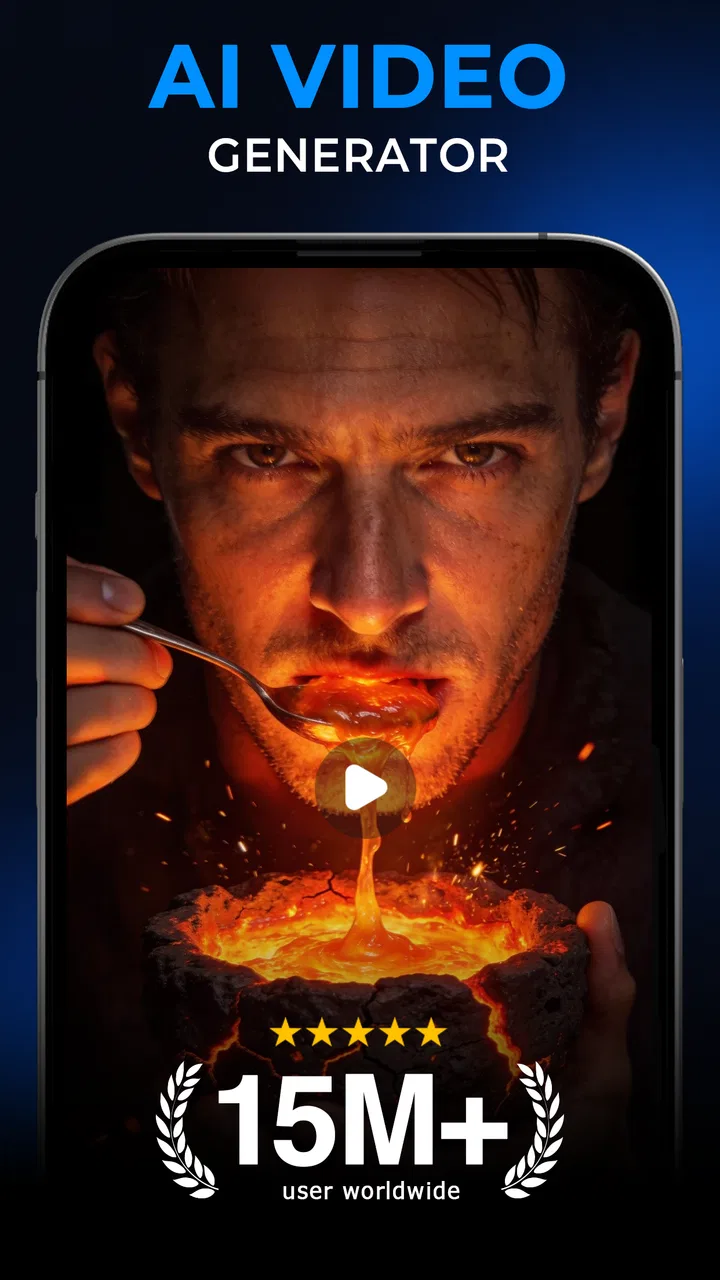
AI GPT Generator-Text to Video
- 3.7
- Rating
- 10.00M
- Installs
- Free
- Price

 Analysis by App-foxy
I tried AI GPT Generator-Text to Video as a quick way to turn rough ideas into visual material, and my first impression was that it is aimed at people who want to experiment rather than build a complete professional production pipeline. The app sits in the Art & Design category, comes from AI Tech Labs, and combines text-based generation for images and video in one mobile experience. That combination makes it interesting for sketches, social posts, mood boards, story concepts, and small creative projects.
The important distinction is that I would not treat it as a replacement for a full video editor or a drawing application. Its value is in helping me move from a sentence to a visual starting point. When I have only a vague idea, the generator can make that idea easier to discuss, revise, or share. When I already know every detail I need, a conventional editor usually gives me more control.
The app is free to install, with optional in-app purchases ranging from $4.99 to $36.99 per item. That makes it easy to test before spending anything, but it also means I would approach repeated generation carefully. Creative AI tools can encourage trial and error, so household users should agree on how the app will be used before anyone starts tapping through generations.
You May Also Like

 Blood Strike: 2.5 Anniversary
Blood Strike’s Loadouts Turn Every Drop Into a Tactical Gamble
A close look at Blood Strike’s custom loadouts: how fast access to signature weapons reshapes its battle royale rhythm, rewards preparation, and narrows the gap between fights.

 Pandora - Music & Podcasts
Pandora’s Music Is Easy to Start, but Harder to Recover
Pandora’s strength is its low-effort path from a seed to a station. Its weak spot is how much confidence it asks you to place in connection, setup, and quiet recovery.

 8 Ball Pool
 Is Built on Rivalries, Rematches, and Routine
A close look at the rivalries, rematches, shared routines, and unanswered safety questions that turn a quick pool match into a persistent mobile community.

 Samsung Music
’s Quiet Strength Is Playing What You Already Own
Its reach comes less from spectacle than from dependable access to a personal library. That simplicity is both the app’s strongest retention engine and its ceiling.

 AccuWeather: Weather Radar
AccuWeather Review: A Quick, Clear Forecast for Everyday Decisions
For everyday plans, the best forecast is the one you can understand quickly. AccuWeather makes rain timing, radar, and local conditions easy to act on, with a few trade-offs.

 Hill Climb Racing
Why Hill Climb Racing Still Turns Crashes Into One More Run
A tiny car, a bumpy hill and one more upgrade: Hill Climb Racing keeps resurfacing because its simple chaos makes every near-miss feel personal.
More From Our News Desk
View All News


How AI GPT Generator-Text to Video works in everyday use
I find the most useful way to approach the app is to treat it as a prompt-led sketchbook: begin with one clear idea, then use the result to decide what deserves refining. That keeps the first session low-pressure and makes it easier to tell whether image generation, video generation, or a separate editing tool best suits the task. Next, I’d focus on shaping a prompt that gives the generator a practical direction.
A practical shared-device scenario
A realistic use case is a shared tablet in a household. One person might use it to create a visual invitation, another might test a short concept for a school presentation, and someone else might simply want to see what happens when a playful prompt becomes an image or video. The app is well suited to this kind of casual collaboration because the starting point is language rather than drawing skill or editing experience.
I found the text-first approach especially useful when the idea was easier to describe than to make. Instead of opening a blank canvas, I could begin with a scene, a subject, a mood, and a style. That lowers the barrier for relatives who do not normally use design software. It also gives a child, teenager, or beginner a way to participate in a creative project without needing to understand layers, timelines, brushes, or export settings first.
The best household workflow is to treat each generation as a draft. I would ask one person to describe the idea, another to suggest details, and a third to decide whether the result is suitable for the intended purpose. This prevents the app from becoming a one-person guessing game and makes its limitations easier to notice. AI output can look attractive while still missing the exact subject, composition, or message the group had in mind.
For example, imagine preparing a themed birthday invitation. I might start with the overall atmosphere, then refine the wording to make the colors, objects, and setting more specific. The generated visual could become inspiration for the invitation rather than the final invitation itself. That distinction matters because a generated image may need separate text layout, proofreading, or editing before it is ready to send.
What to decide before installing it on a shared device
AI GPT Generator-Text to Video is rated for Everyone, which makes it approachable for a broad audience. I still would not interpret that age context as a substitute for supervision or family judgment. An Everyone label does not automatically explain how a particular prompt will be handled, how a generated scene might be interpreted, or whether a young user understands the difference between an invented visual and a trustworthy representation.
Before using it on a shared phone or tablet, I would establish a few simple boundaries. Decide whether children may use it alone, whether adults should review generated material before it is shared, and whether the device is being used for schoolwork, entertainment, or both. These are not app controls; they are household agreements, and they help avoid confusion when several people use the same device.
I would also separate creative experimentation from personal information. A prompt should not need private addresses, school details, phone numbers, or identifiable family information to produce a useful visual. Keeping prompts general is a sensible habit, especially when a device is shared and several people may later see the generation history or saved results.
Another useful boundary is ownership of the final work. If a family member creates an image for a card, poster, or presentation, decide who is responsible for checking it before publication. The person who wrote the prompt may not be the person who notices an incorrect symbol, awkward detail, or unsuitable visual element. A quick human review is still essential.
Coordinating prompts instead of wasting generations
The most effective improvement I found was not a hidden button or a complicated setting; it was better prompt planning. On a shared device, people often take turns adding random details, which can produce an unfocused result. A better approach is to divide the prompt into four parts: the main subject, the setting, the visual mood, and the intended use.
For a classroom illustration, I might first describe the subject and setting, then add a calm visual style, and finally explain that the result is meant to support a presentation. For a short video idea, I would describe the action in sequence rather than listing unrelated objects. This gives the generator a clearer direction and makes it easier to identify which part needs changing when the result misses the mark.
The most useful habit is to change one important instruction at a time. If I rewrite the entire prompt after every attempt, I cannot tell which adjustment helped. Keeping the subject stable while changing the mood, camera perspective, or setting makes the process more understandable. This is particularly helpful when several people are collaborating and want to learn from each attempt.
I would also keep a small written record of successful prompt wording outside the app, especially for a recurring project. A shared note can contain the basic description, preferred style, and revisions that worked well. That avoids starting from nothing when a family wants a second image with a similar feel. It also keeps coordination practical when different people use the same device at different times.
There is a trade-off here. The app makes experimentation inviting, but experimentation can become expensive or frustrating if every minor change leads to another paid action. Since optional purchases are available, I would agree on a stopping point before a group session begins. For example, decide that the first round is for broad ideas and the next round is only for meaningful improvements. That keeps the creative process from turning into endless tapping.
Where the image and video approach helps
The image side is useful when I need a visual reference quickly. It can help with a character concept, a color direction, a fictional location, or a rough poster idea. The video side is more valuable when movement or sequence is part of the concept. Even a rough generated clip can help a group discuss pacing, atmosphere, or the difference between a still illustration and an animated scene.
That does not mean the video result should automatically be considered finished content. A text-to-video tool usually begins with an interpretation of the prompt, while a traditional editor begins with material I have chosen and arranged myself. If the project depends on exact timing, consistent characters, precise dialogue, or repeatable branding, I would rather use a conventional editor after creating a rough concept.
This is where the app works best in a two-stage workflow. I can use AI GPT Generator-Text to Video to explore possibilities, then move the chosen direction into another tool for trimming, captions, audio, layout, or final corrections. It is a creative springboard, not necessarily the last stop. That makes it more useful for brainstorming than for users who expect complete production control inside one mobile app.
Compared with a standard drawing app, it is faster at producing an initial visual but less direct for manual corrections. Compared with a normal video editor, it can begin from an idea rather than existing footage, but it does not replace the editor’s predictable timeline-based control. Compared with searching stock media, it offers more imaginative freedom, although a stock asset may be easier when I need a specific real-world object or a polished, immediately usable image.
Trust, age context, and reviewing the output
The Everyone age rating makes sense for a general creative tool, but I would still teach younger users to question the result. A generated picture can look convincing without representing a real event, person, place, or product accurately. In a school or household setting, the app should be presented as a creative assistant, not as a source of evidence.
This matters when a generated visual includes recognizable people, medical ideas, historical scenes, or claims that could be mistaken for facts. I would label invented material clearly when sharing it, especially if someone outside the household might assume it is a photograph or an authentic recording. That small step protects trust and helps children understand what the tool is actually doing.
Adults should also review prompts and outputs when the app is used by younger family members. The age rating provides useful context, but it does not remove the need to discuss respectful subjects, personal information, and responsible sharing. I would encourage children to create fictional characters and general scenes rather than trying to reproduce private individuals or real-life situations without permission.
For teenagers and adults, the main trust issue is not only content but expectation. The app may produce something visually appealing that still needs correction. I would check spelling in any visible text, inspect faces and hands, look for inconsistent objects, and confirm that the visual matches the original intention. These checks take little time and prevent a rough generation from being mistaken for a finished design.
Performance expectations and the role of the current version
The app has reached version 1.7.2, and its broad adoption suggests that many people are willing to try this style of creation. It has over ten million installs and an average rating of 3.4 from around twelve thousand ratings, so I read the overall reception as mixed rather than universally enthusiastic. That matches my view: the concept is accessible, but the experience depends heavily on expectations, prompt quality, and how much refinement a user needs.
Those figures are useful context, but they do not tell me whether every generation will fit every device or every household workflow. On an older phone, I would be patient with demanding visual tasks and avoid treating the app like an instant camera. The minimum operating-system requirement is Android 7.0, which gives it a relatively broad compatibility range for Android users, though actual comfort will still depend on the device.
I would also test the free experience before planning a large project. The free entry point is a genuine advantage because it lets a family discover whether the style and workflow suit them. If the app becomes part of a regular design routine, then the in-app purchase range deserves attention. I would not pay simply because a first result is imperfect; I would first improve the prompt and decide whether the app is solving a real problem.
Who should use it and who should choose something else
I would recommend it to curious beginners, families looking for a shared creative activity, students who need visual brainstorming, and social-media users who want to explore concepts without learning advanced design software first. It is also a good fit for someone who often has ideas in words but struggles to turn them into a visual starting point.
I would be more cautious recommending it to a professional designer who needs exact control, repeatable brand elements, or reliable production output. That person may get value from the idea-generation stage, but a dedicated design suite will usually be better for precision. Likewise, someone who only wants to edit personal footage may find a normal mobile video editor more efficient than generating visuals from text.
It is not the right choice for a household that wants strong separation between users on one shared device. I would not assume that separate family workspaces, child profiles, or detailed parental controls are part of the experience. If account boundaries and individual histories are central requirements, choose a tool designed around those needs or use separate device accounts and clear household rules instead.
It may also disappoint users who expect every prompt to produce a consistent character or a specific scene immediately. AI generation is interpretive. The more exact the project, the more likely I am to need several attempts and a second application for cleanup. The app is strongest when I can accept variation and use the result as a direction rather than a guaranteed final asset.
My household verdict
AI GPT Generator-Text to Video is an approachable Art & Design app for turning language into visual experiments. I like it most when a family or small group uses it as a conversation tool: one person brings the idea, another improves the prompt, and everyone reviews the result. That workflow makes the app feel more purposeful than simply generating random pictures.
Its free price makes trying it straightforward, while the optional purchases mean I would set limits before using it heavily. The broad Everyone rating supports casual access, but responsible adults should still guide younger users and explain that generated visuals are not automatically factual. On a shared device, simple agreements about prompts, privacy, spending, and final approval matter more than any creative shortcut.
My final recommendation is positive but specific. Use it when you want a fast visual starting point, a playful household activity, or a way to test an idea before opening a more advanced editor. Skip it when you need precise design control, dependable continuity, or a clearly separated multi-user environment. For imaginative first drafts, it is worth trying; for finished, tightly controlled work, I would pair it with a conventional creative tool.
FAQs for AI GPT Generator-Text to Video
01What is AI GPT Generator-Text to Video and how does it work?
AI GPT Generator-Text to Video is an innovative application that converts written text into engaging video content. Utilizing advanced AI algorithms, it interprets the input text and transforms it into a visually appealing video with relevant graphics, animations, and voiceovers. This app is ideal for content creators who want to enhance their digital storytelling with minimal effort.
02Is AI GPT Generator-Text to Video suitable for beginners?
Yes, AI GPT Generator-Text to Video is designed with user-friendliness in mind, making it accessible to beginners. The interface is intuitive, offering step-by-step guidance through the video creation process. Additionally, the app provides various templates and customization options that allow users to easily tailor their videos to fit their specific needs.
03What kind of text can I convert into video using this app?
The app supports a wide range of text types, from short paragraphs to full articles, scripts, and even structured data. Whether you’re creating marketing content, educational materials, or storytelling videos, AI GPT Generator-Text to Video can handle diverse content and produce a professional-quality video that aligns with your objectives.
04Are there customization options available for the generated videos?
Absolutely! AI GPT Generator-Text to Video offers extensive customization features. Users can choose from various templates, adjust color schemes, select different fonts, and incorporate their own images or logos. Additionally, you can tweak the audio settings, including voiceover options, to ensure the final video aligns perfectly with your brand or personal style.
05Does the app offer any free features or is it entirely subscription-based?
AI GPT Generator-Text to Video typically offers a free trial version that provides access to basic features. This allows users to test the app’s capabilities before committing to a subscription. The premium version, available through subscription, unlocks advanced features, additional templates, and more customization options to enhance your video production experience.
Pros
- Highly intuitive user interface
- Wide range of video styles
- Fast processing times
- Supports multiple languages
- Easy integration with social media
Cons
- Limited free version features
- Occasional lag in video rendering
- Requires stable internet connection
- Customization options are restricted
- Might struggle with complex scripts

AI GPT Generator-Text to Video
Gallery